

How can I connect the folder in Power BI? What if I add the Excel file every week? Does it update in Power BI?
How can I create the weekly report dashboard, where I just need to add the Excel file in a folder & report is generated automatically in Power BI?

To set this up so it handles new weekly files automatically, follow these steps:
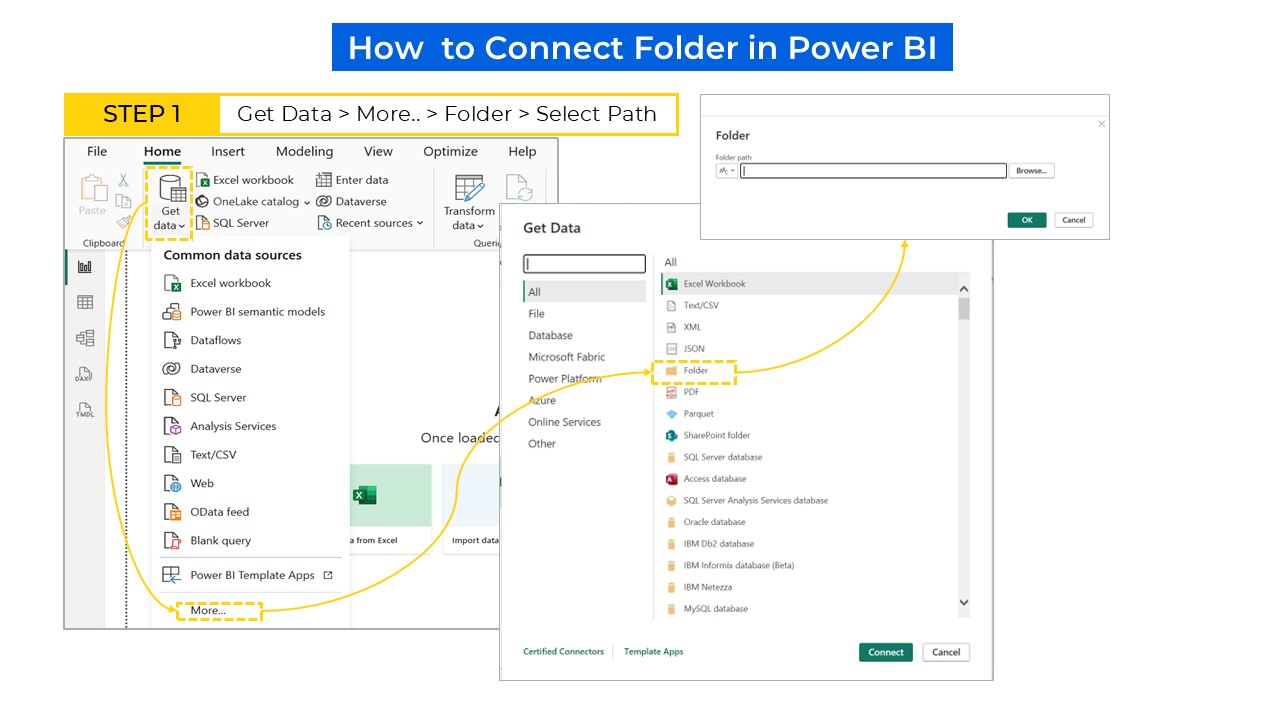
- Get Data: In Power BI Desktop, go to Home > Get Data > More… > Folder.
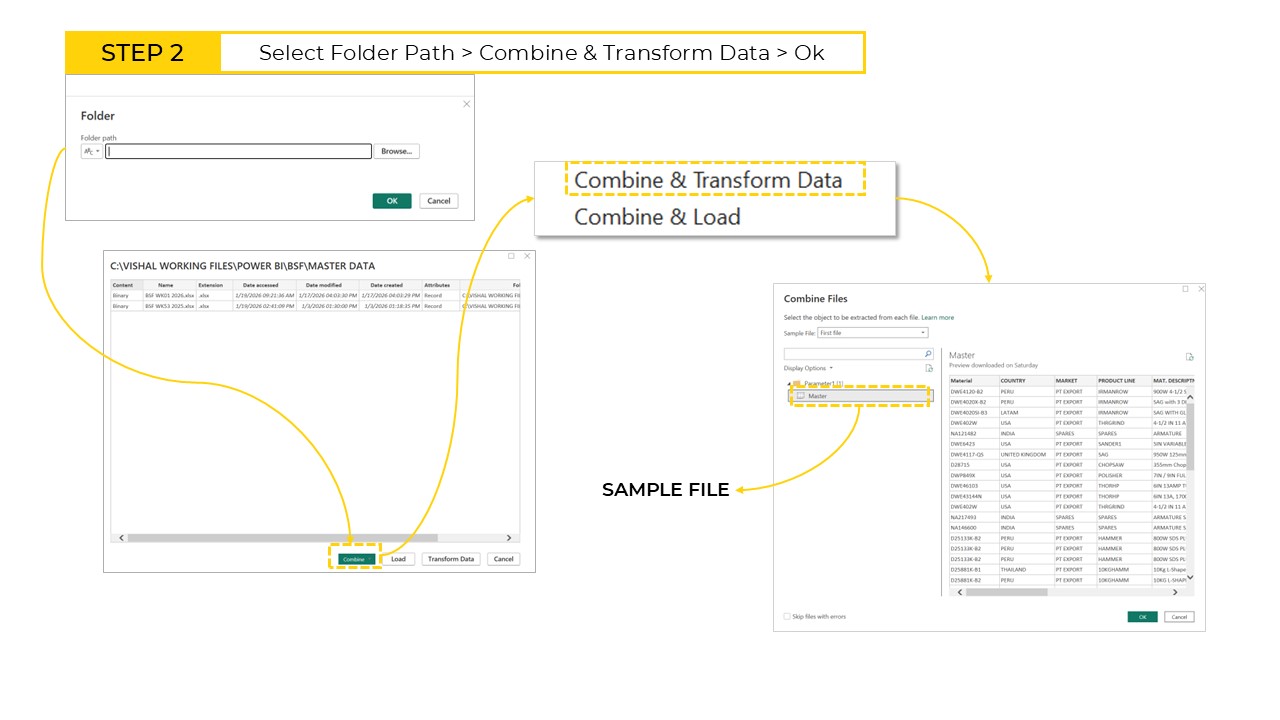
- Browse: Point it to your folder path (either local or on SharePoint/OneDrive).
- Combine & Transform: Instead of just “Load,” click Combine > Combine & Transform Data.
Note: Power BI will ask you for a “Sample File.” Choose the first one. It uses this to understand the column structure (headers, data types) that all future weekly files should follow.
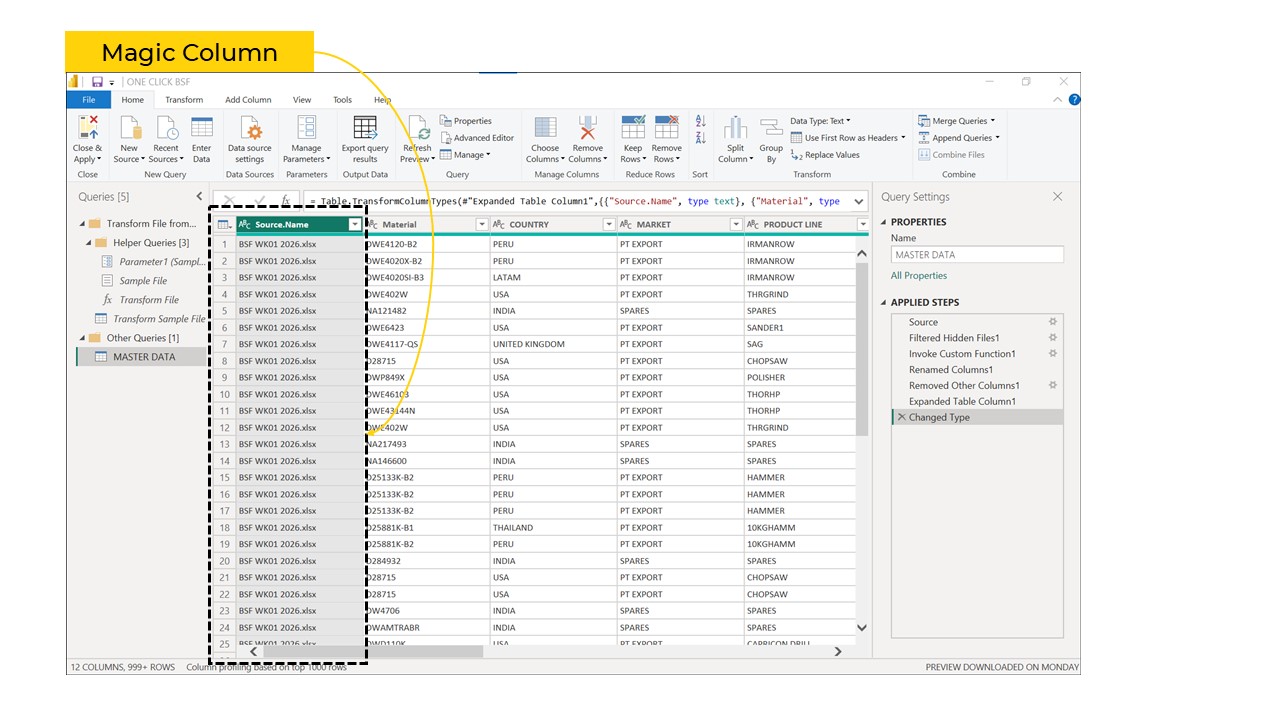
The “Magic” Column: In the Power Query editor, you’ll see a column called Source.Name. Keep this! It tells you which file each row of data came from, which is perfect for filtering by “Week” in your report.
Does it update when you add a new file?
Yes. When you drop a new Excel file into that folder and hit Refresh in Power BI:
- Power BI scans the folder again.
- It finds the new file.
- It applies the exact same transformation steps (cleaning, renaming, etc.) to the new file.
- It appends (stacks) the new data at the bottom of your existing table.
Creating the “Automatic” Weekly Dashboard
To make it truly “hands-off” after the initial setup:
- Standardize Your Files: Ensure every weekly Excel file has the exact same column headers and sheet names. If one week you name a column “Sales” and the next week “Revenue,” the automation might break.
- Use SharePoint/OneDrive: If you keep the folder on your local computer, you’ll need a “Data Gateway” to refresh it once published. If the folder is on SharePoint, Power BI can refresh automatically in the cloud without your computer being turned on.
- Publish to Power BI Service: Once your report is ready, click Publish. In the Power BI Service (the web version), go to the dataset settings and Schedule Refresh.
- Now, your only job each week is to save the new Excel file into that folder. Power BI will wake up at the scheduled time, see the new file, and update your dashboard automatically.